
Step 1. Bring up the Preset list. The Preset list can be accessed by:
- pressing the PRESETS button on the Start Screen
- pressing the “swap” icon in GUITAR EDITING. More info: Guitar editing
- pressing any preset position on the PRESET POSITIONS screen, when the list is not locked. More info: Preset positions
Step 2. Press and hold any preset to switch to multiple selection mode.
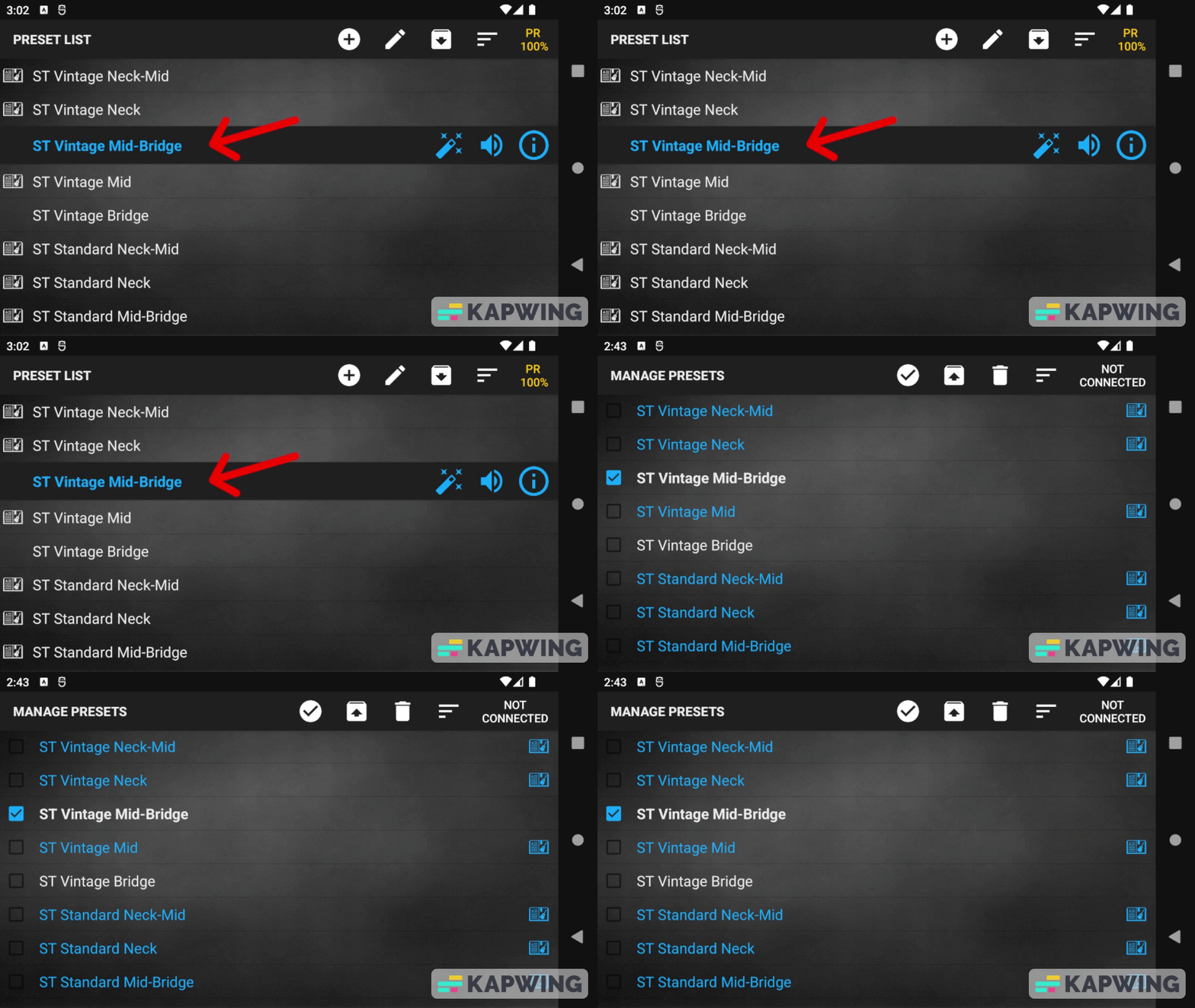
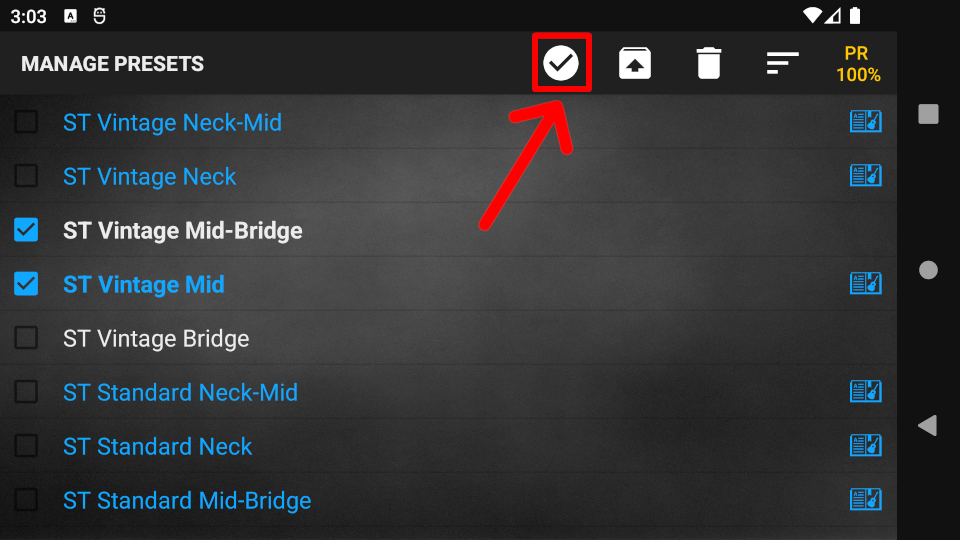
Step 3. Select the presets you wish to export. You can select all presets by pressing the “select all” icon on the Action Bar.
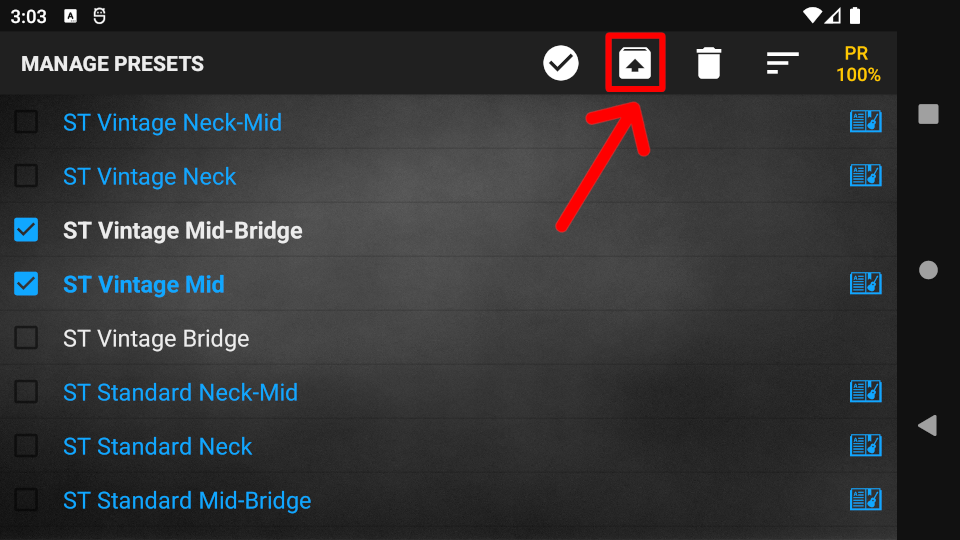
Step 4. Press the “export” icon on the Action Bar.
Step 5. Name the export file, while making sure that the .pres suffix remains intact.
Step 6. Use the File Manager to select the export destination on your device, then press Save. (Default destination: /Downloads)
 English
  Magyar